Drag SL and TP on the chartYour order shows as real TradingView lines. Drag the stop and target; lots, risk, pips and R:R update as you drag. Open trades get a position line with live P&L.
Stops only tightenDrag an open trade's stop closer to cut risk. Dragging it further away is refused and the line snaps back. Close a trade with the ✕ on its line.
Your chart, your brokerReads the symbol on your TradingView chart and finds the same one on your MT5 (XAUUSD → XAUUSDm and so on). You can override any match.
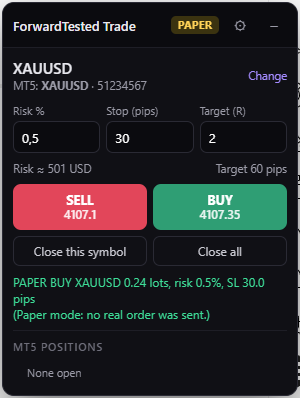
Sized from riskSet risk %, stop in pips and target in R. The bridge works out the lots from your real equity and the broker's contract.
Prop firm guardsEvery order passes the same risk cap, daily stop, max open trades and firm drawdown rules as your alerts.
Live trading is PropGuard PlusPaper mode is free. Live orders to MT5 need PropGuard Plus ($19 a month), free for everyone until 23 November 2026. Closing trades and tightening stops always work.
Scans your TradingView chartReads the candles on your chart and your HVN Retest Navigator script, rebuilds the volume profile, and shows the next trade with its stop and three targets set by your Volume Profile rules. You watch it scan, right on the chart.
Checked against your MT5 accountLot size from your risk %, split 45 / 27.5 / 27.5 across TP1, TP2 and TP3, your balance, and any trade already open. Nothing is placed until you press Accept. Skip leaves it.
Drawn with TradingView's own toolsAn accepted trade appears as a Long or Short Position on your chart, so you can see the risk and targets the way you are used to.
Paper firstPaper mode until you switch the bridge app to live. Live orders ask you to confirm by default.